Clinician Guide
Getting Started as a Clinician
Your admin has invited you to Clinara. Create your account, acknowledge the privacy and consent responsibilities, set your kiosk PIN, and you’ll be ready for your first session.
Accept Your Invitation
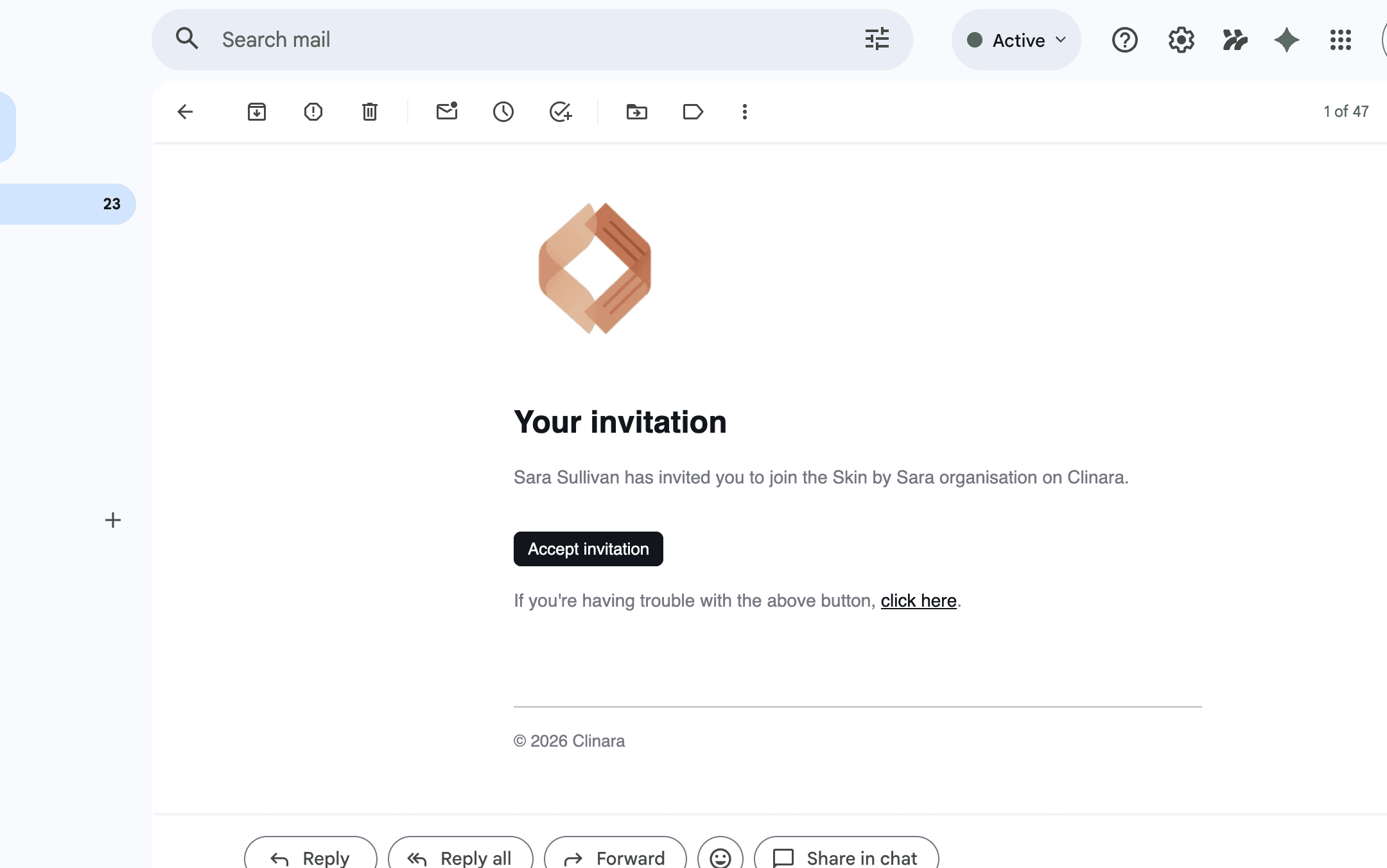
Open the invitation email
You’ll get an email titled "Your invitation". Click "Accept invitation" to start setting up your Clinara account.
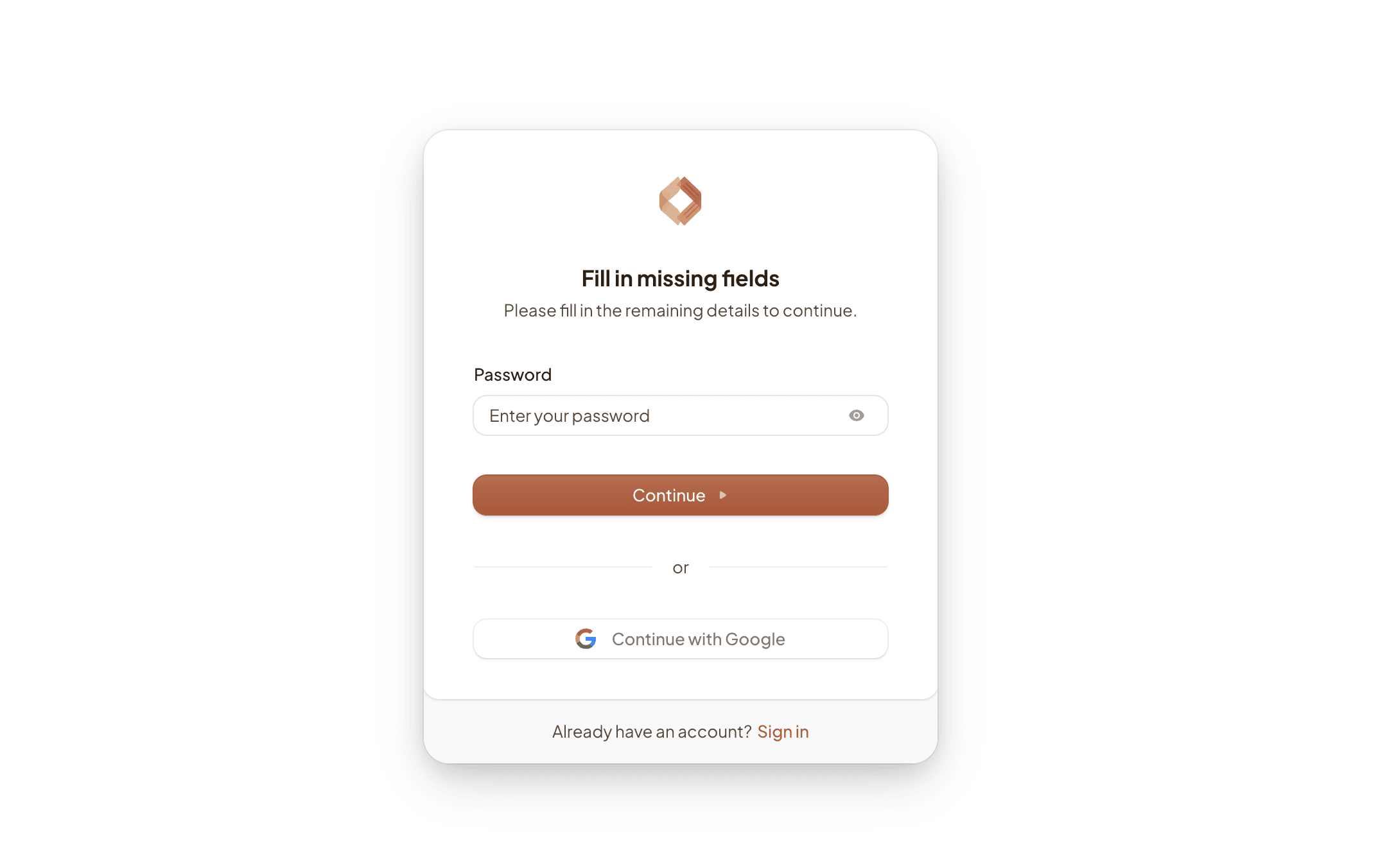
Create your account
Set a password that meets the strength requirements, or click “Continue with Google” to sign in with single sign-on. If you already have a Clinara account, use the “Sign in” link at the bottom.
Set Up Your Account
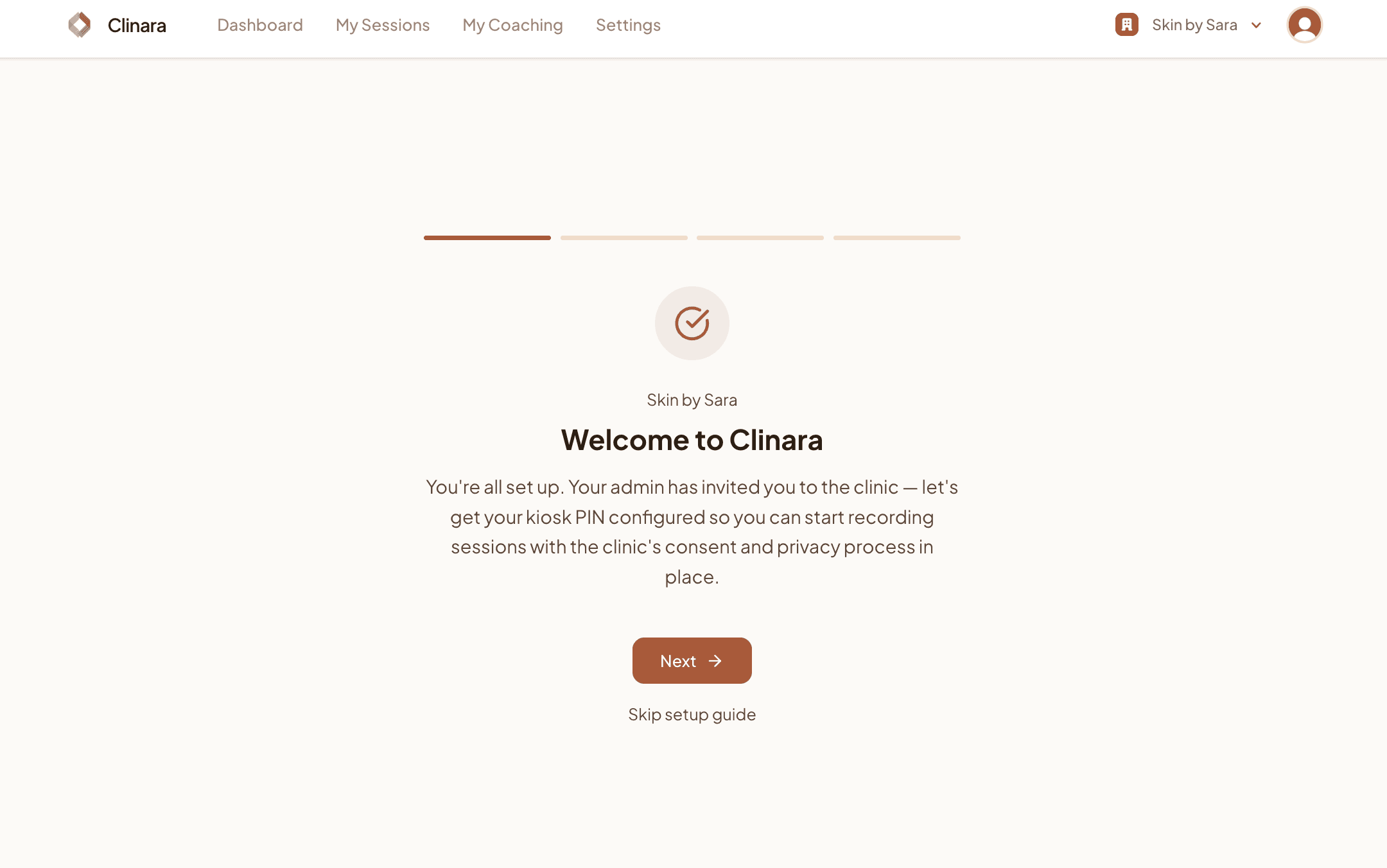
Welcome to Clinara
After signing in you’ll land on the clinician onboarding wizard. The card confirms which clinic you’ve joined and walks you through configuring your kiosk PIN. Click “Next” to continue, or “Skip setup guide” to jump straight to your dashboard.
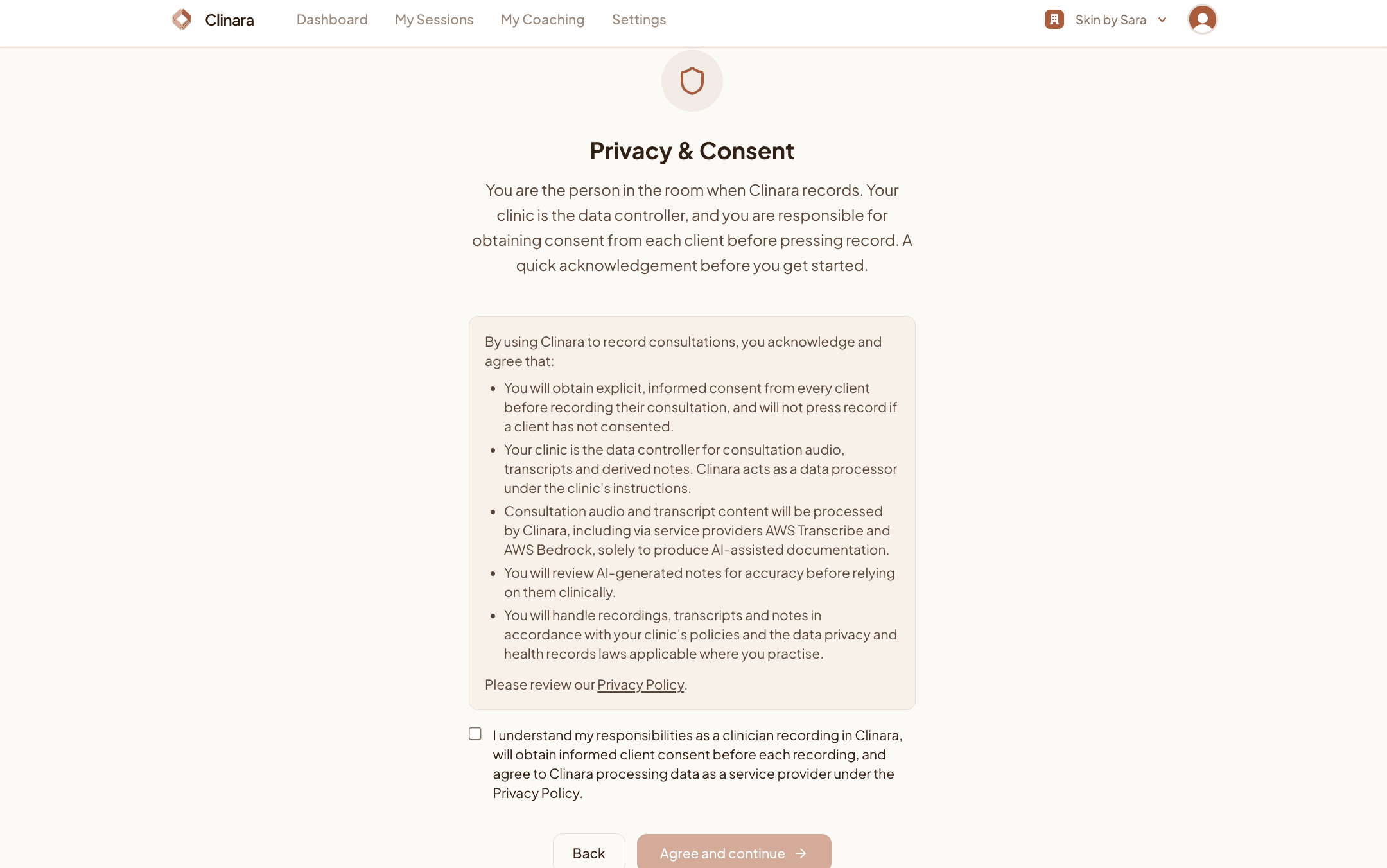
Acknowledge privacy & consent
You’re the person in the room when Clinara records, so we ask you to confirm a few things before going further: you’ll get explicit informed consent from every client before pressing record, you understand the clinic is the data controller, and you’ll review AI-generated notes for accuracy. Tick the acknowledgement, then click “Agree and continue”.
Set your kiosk PIN
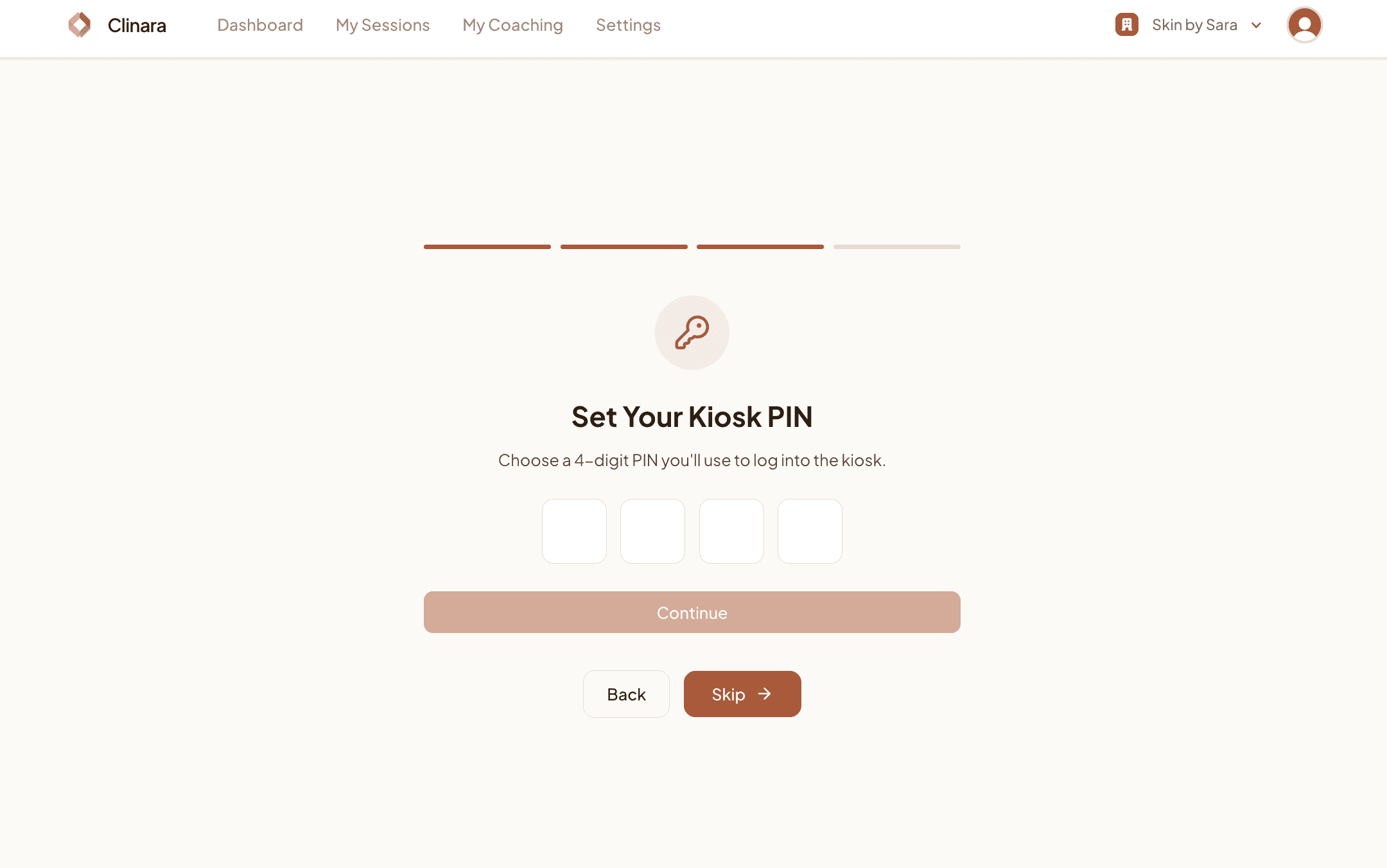
Choose a 4-digit PIN you’ll use to log into the kiosk on the iPhone or iPad before each consultation. You can come back and change this later in Settings › Profile, or hit “Got it, go to dashboard” if you’d prefer to set it after exploring the dashboard.
Your Dashboard
Track your remaining setup
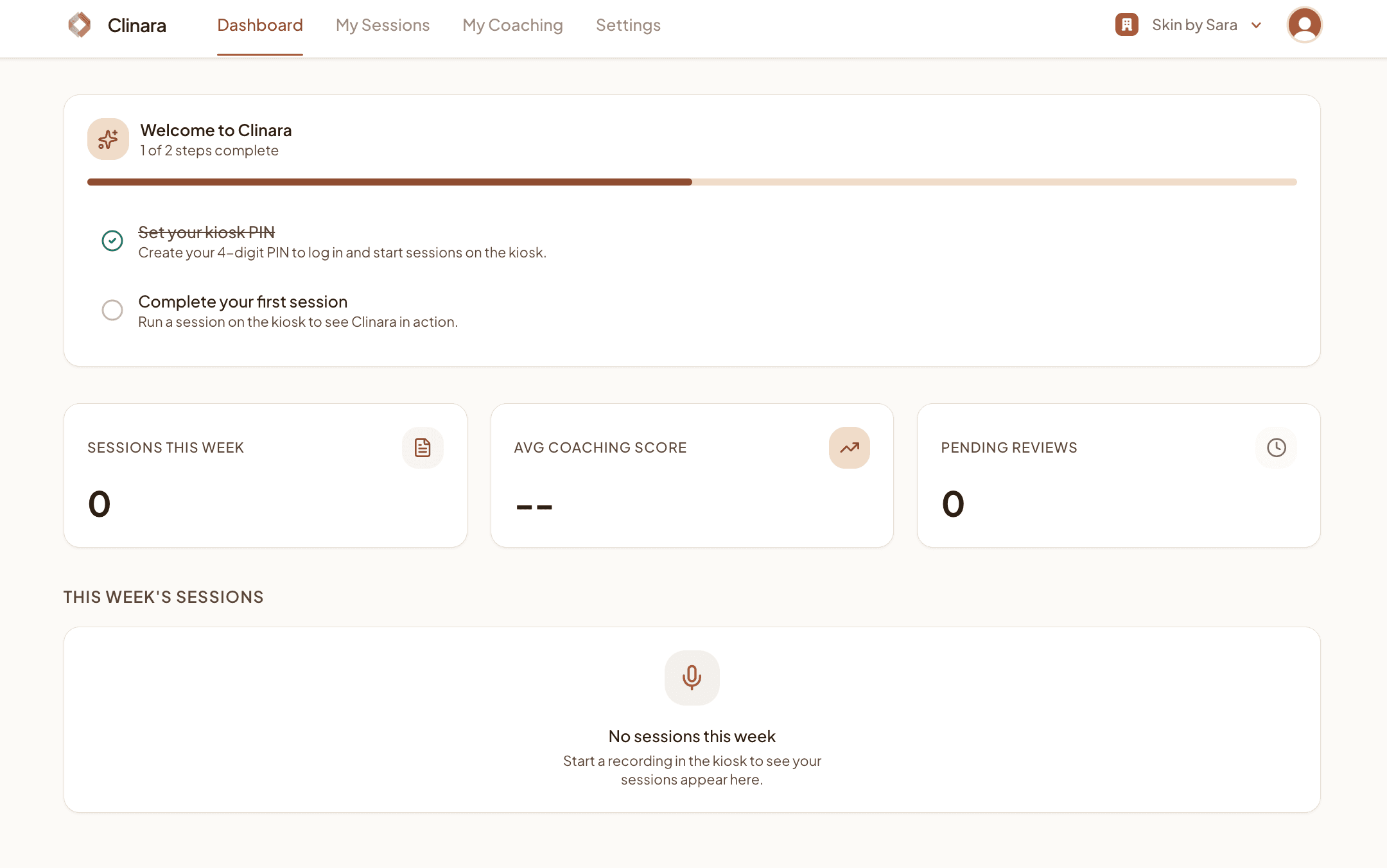
Your dashboard shows a “Welcome to Clinara” card with the steps left to complete — setting your kiosk PIN (if you skipped it earlier) and running your first session. Once both are ticked off, the card disappears and you’ll see your weekly sessions and coaching score.
Find your kiosk PIN any time
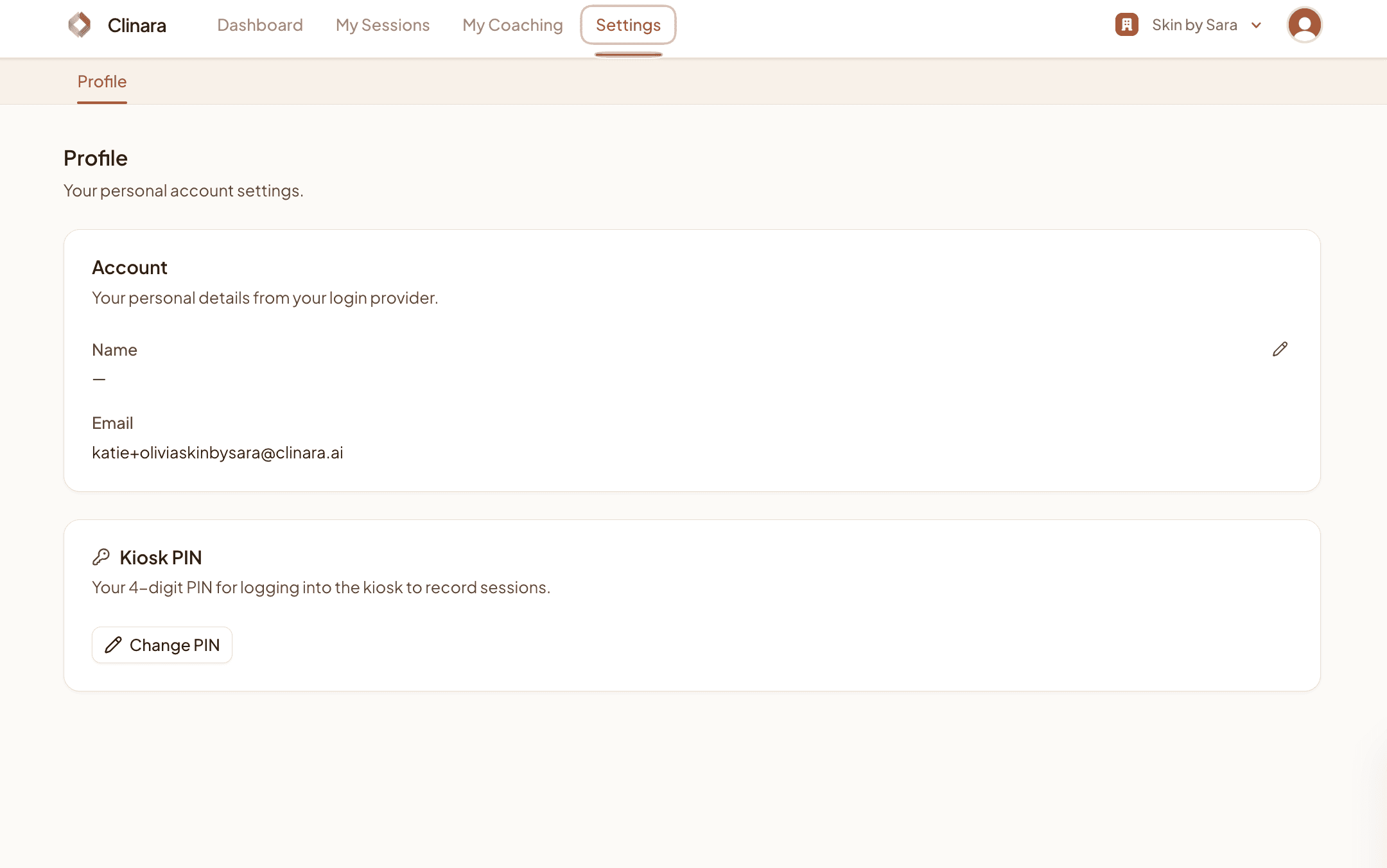
Head to Settings › Profile to update your name, see the email Clinara has on file, or click “Change PIN” to set or reset your 4-digit kiosk PIN at any point.
Before your first session
Make sure the device running the kiosk is configured correctly so your recording isn’t interrupted:
- 1Auto-Lock is off — Open Settings › Display & Brightness › Auto-Lock on the iPhone or iPad and set it to “Never”.
- 2Low Power Mode is off — Low Power Mode can put the screen to sleep unexpectedly. Check Settings › Battery on the device.
- 3Stay on the kiosk screen — Don’t switch apps or leave Clinara during the consultation — the recording will stop if you do.
Need help? Contact support