Team Management
Inviting Your Team
Add clinicians and admins to your clinic so they can log into the kiosk and start recording sessions.
Open the Team Settings
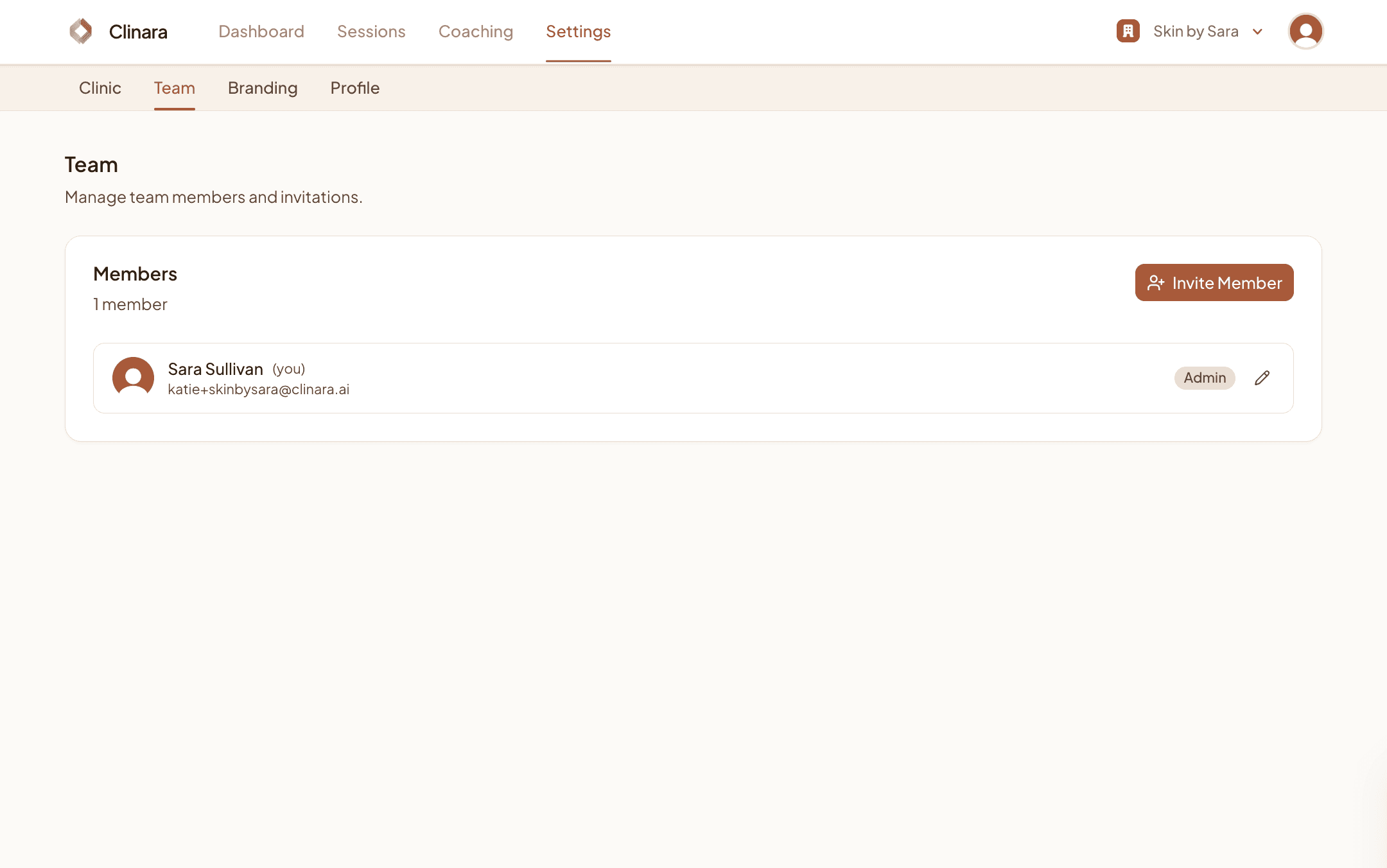
Go to Settings › Team
From your dashboard, head to Settings and select the Team tab. You’ll see yourself listed as the only admin to start with.
Send an Invitation
Invite a new member
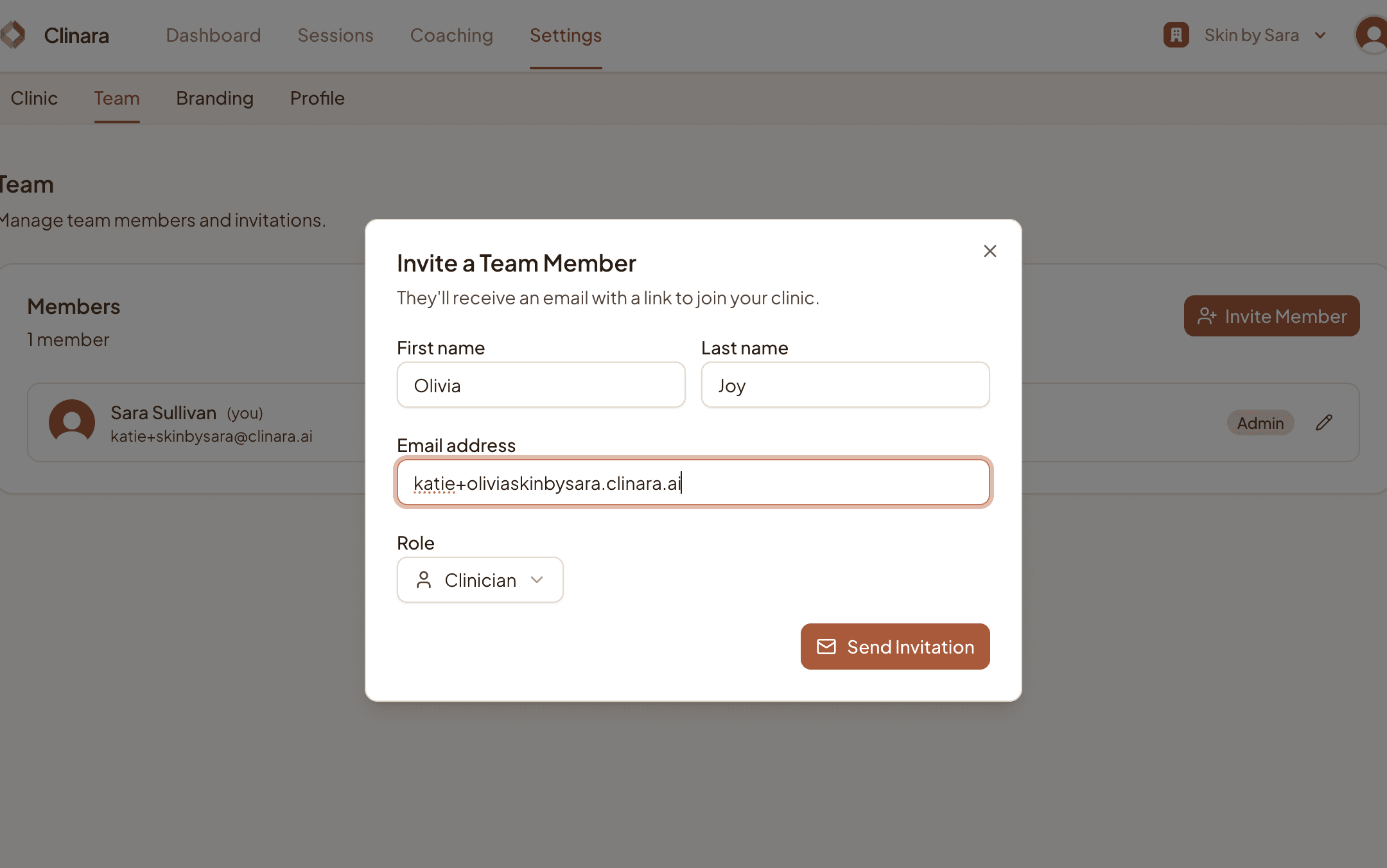
Click “Invite Member”. Enter the new team member’s first name, last name, and email address, then choose their role — Clinician for clinical staff or Admin for users who also need to manage settings, branding, billing, and the team. Click “Send Invitation” and Clinara will email them an invite link.
Track pending invitations
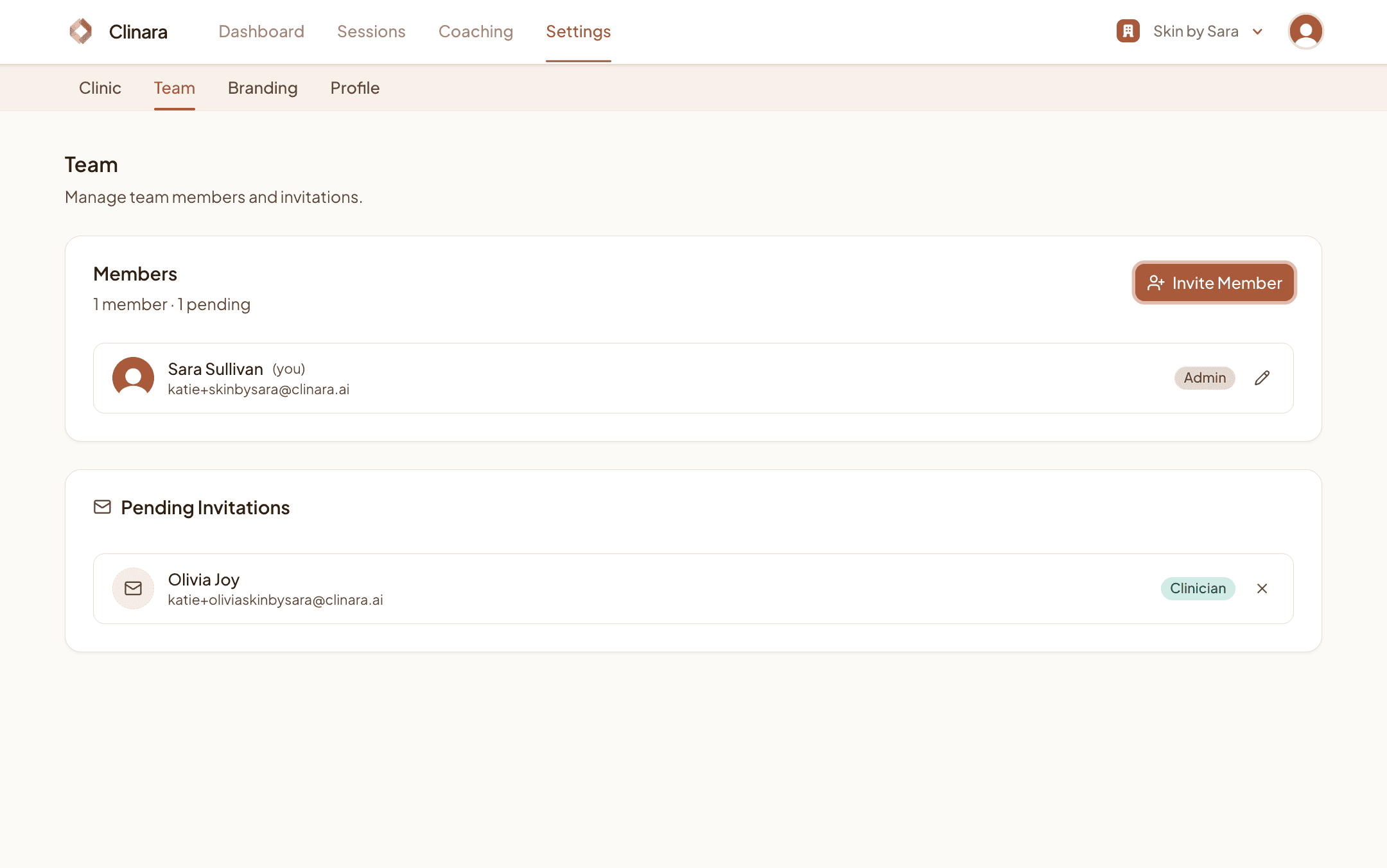
Pending invitations appear in their own “Pending Invitations” card under the Members list. You can revoke a pending invitation from here at any time. Once the invitee accepts and finishes their account setup, they move into the Members list.
Team tips
A few things to keep in mind when managing your team:
- 1Clinicians vs Admins — Clinicians can record sessions and review their own notes and coaching feedback. Admins can do all of that, plus manage team members, clinic settings, branding, and billing.
- 2Each clinician needs a kiosk PIN — Once a team member accepts their invitation, the onboarding wizard will prompt them to set a 4-digit kiosk PIN. They can also change it later under Settings › Profile.
- 3Resend or revoke from the same place — If someone hasn’t accepted yet, you can revoke the invitation from the Pending Invitations card and send a fresh one with “Invite Member”.
Need help? Contact support