Device Setup
Connecting Your iPhone or iPad
Download the Clinara app, pair it with your clinic, and set your kiosk PIN so you’re ready to record consultations.
Get Clinara on the App StoreDownload the Clinara App
Install Clinara on your iPhone or iPad
Open the App Store on your iPhone or iPad and search for “Clinara”, or tap the “Get Clinara on the App Store” button above to go straight to the listing. The app is free — you just need an active Clinara clinic subscription to sign in. Don’t have a device handy? You can also run the kiosk in any modern browser at /kiosk.
Generate an Enrolment Code
Open kiosk enrolment
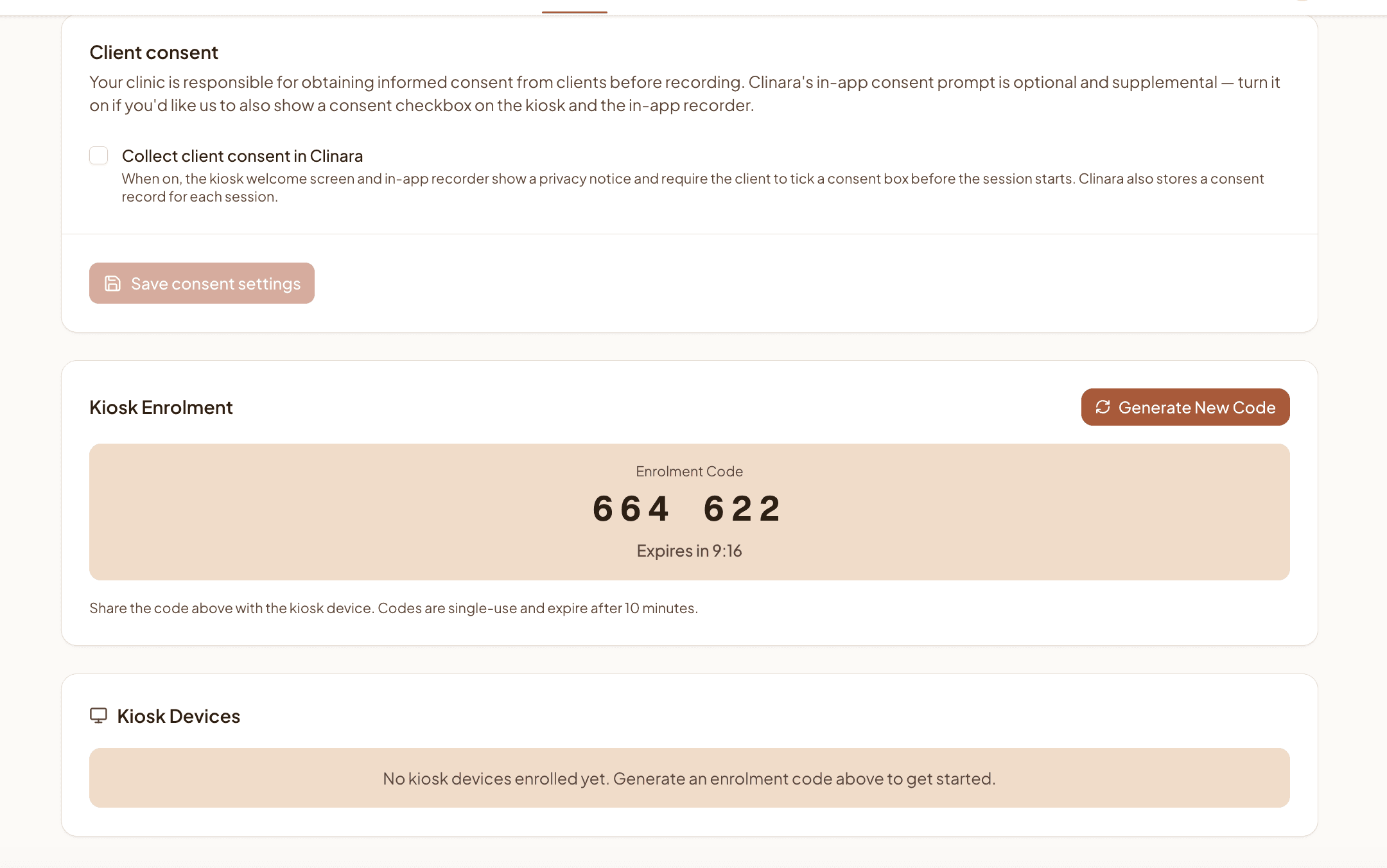
From the Clinara web app, go to Settings › Clinic and scroll down to “Kiosk Enrolment”. Click “Generate Code” — you’ll get a 6-digit code that’s single use and expires after 10 minutes.
Connect the Device
Enter the code on your iPhone or iPad
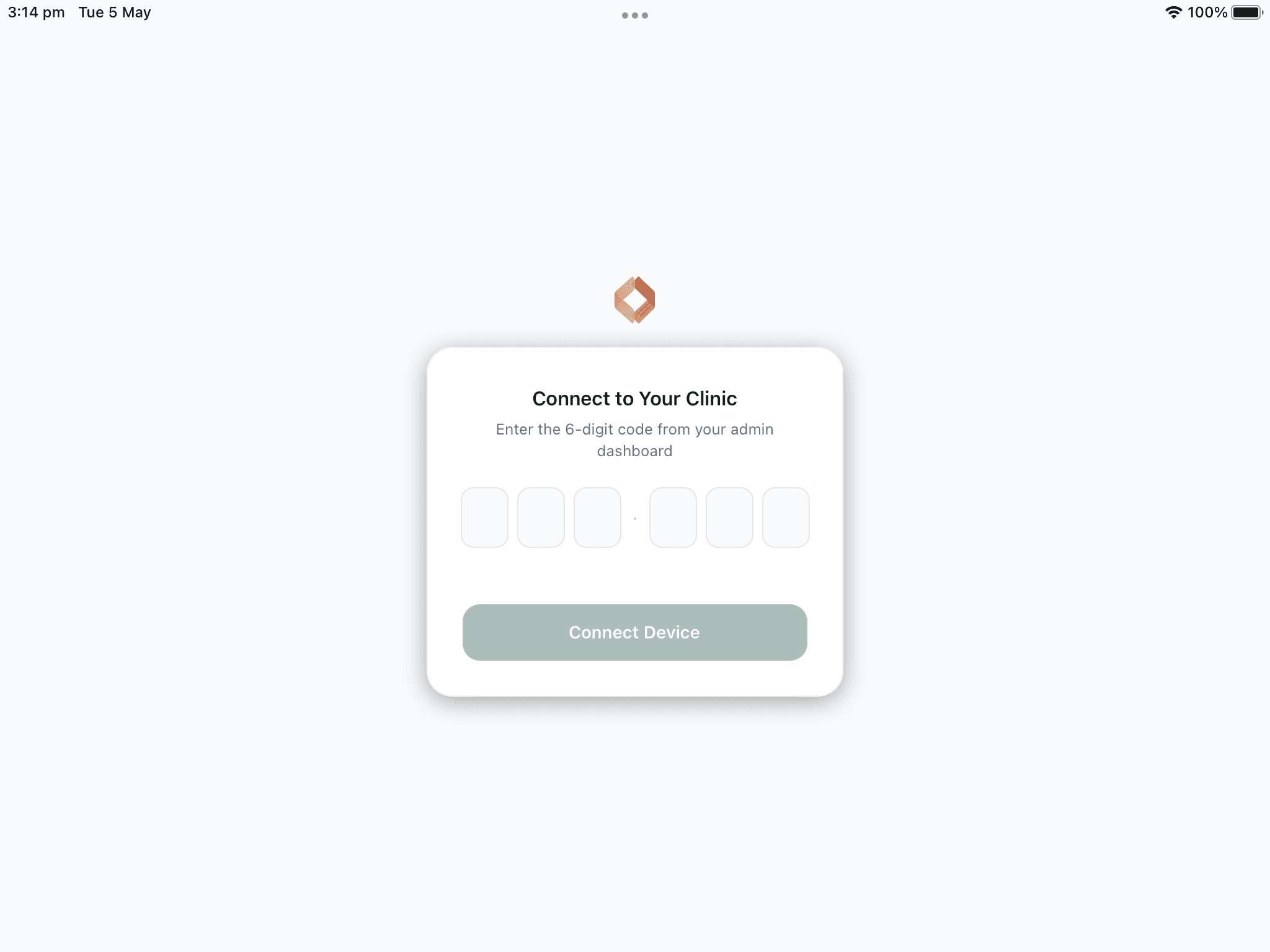
Open the Clinara app on your iPhone or iPad (or browse to /kiosk in any browser). Type the 6-digit code into the “Connect to Your Clinic” screen and tap “Connect Device” to link the device to your clinic.
Confirm the device is enrolled
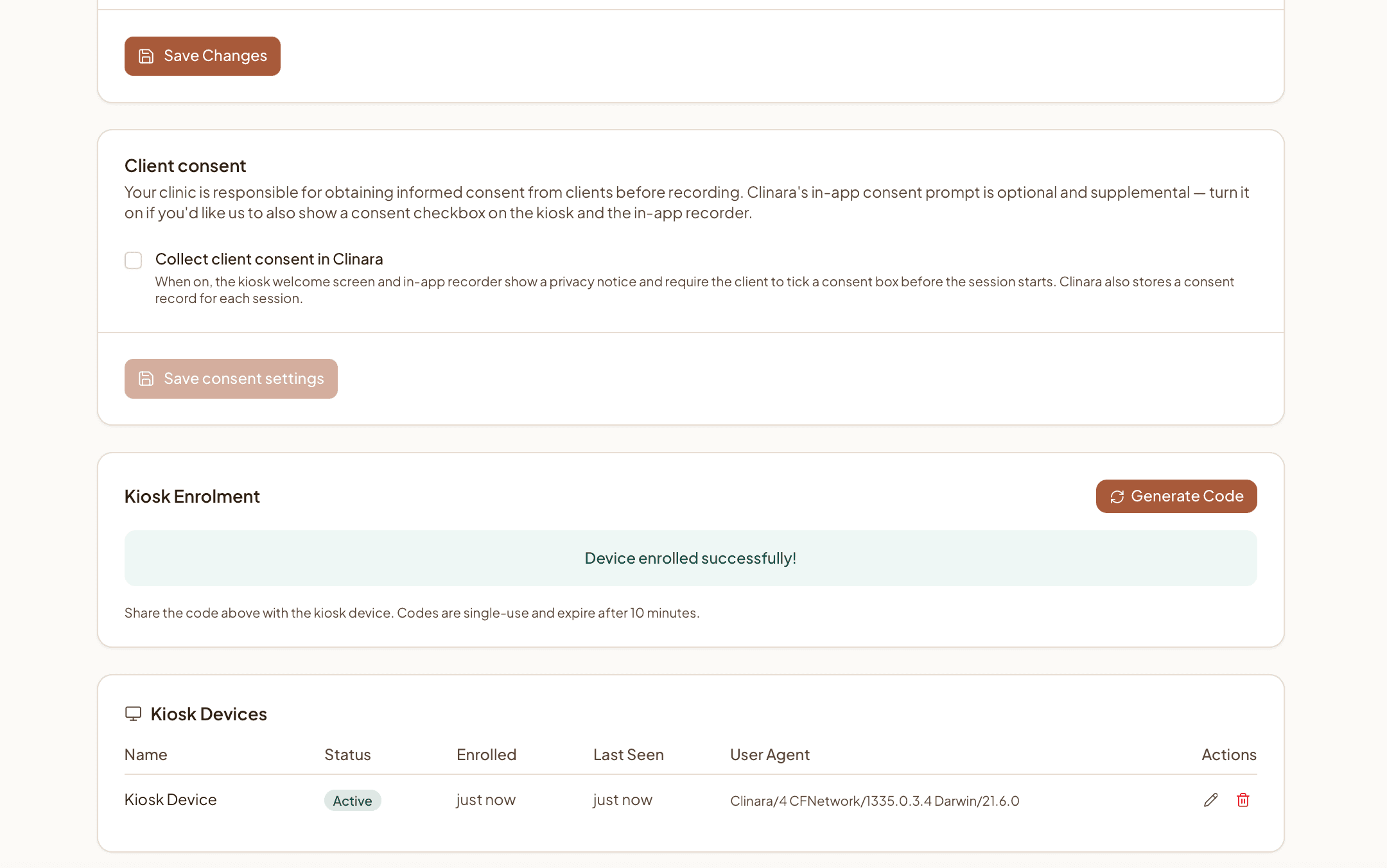
Back in Settings › Clinic you’ll see a “Device enrolled successfully!” confirmation, and your device will show up in the Kiosk Devices list with an Active status. From here you can rename the device or remove it if needed.
Set Your Kiosk PIN
Open Settings › Profile
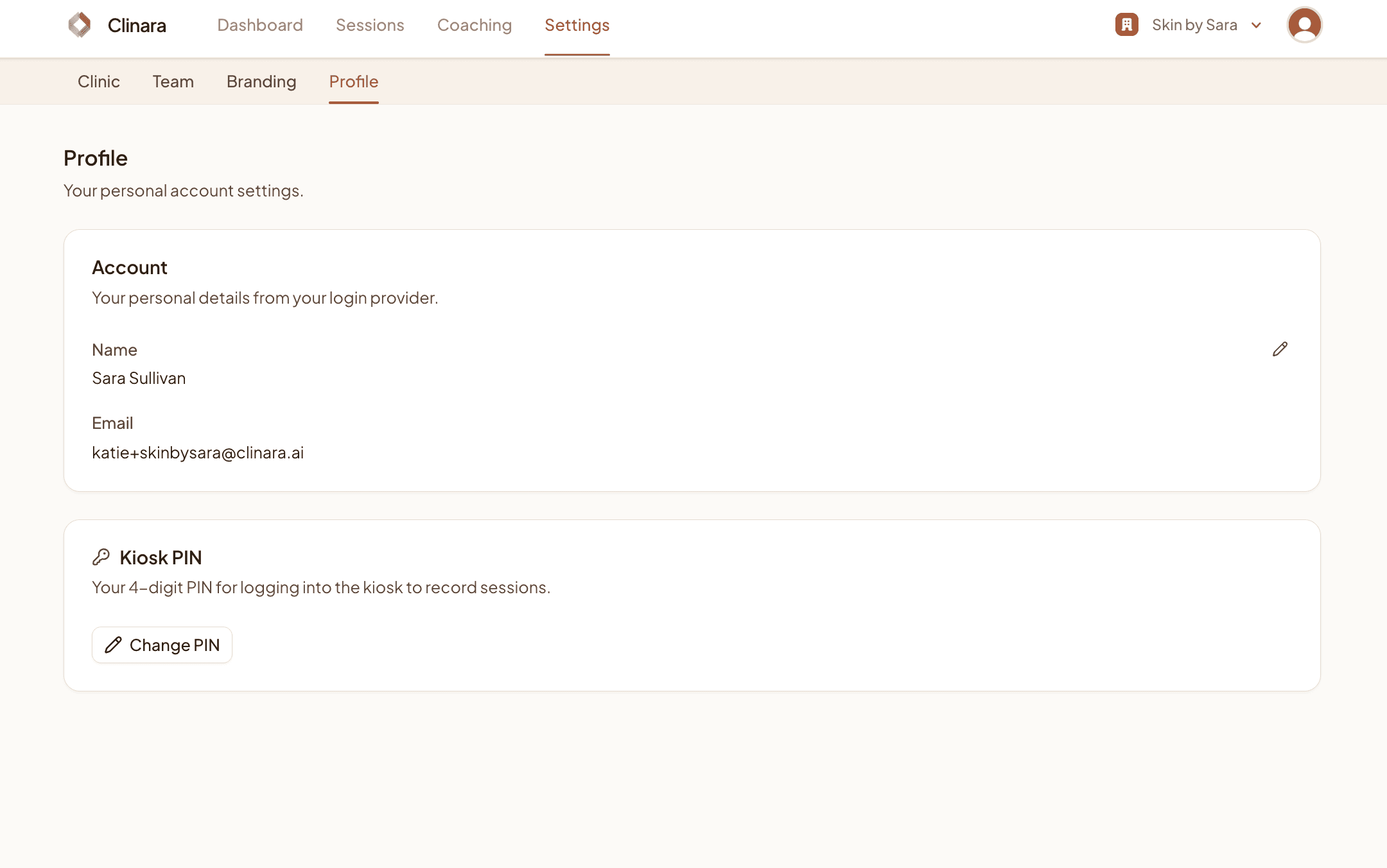
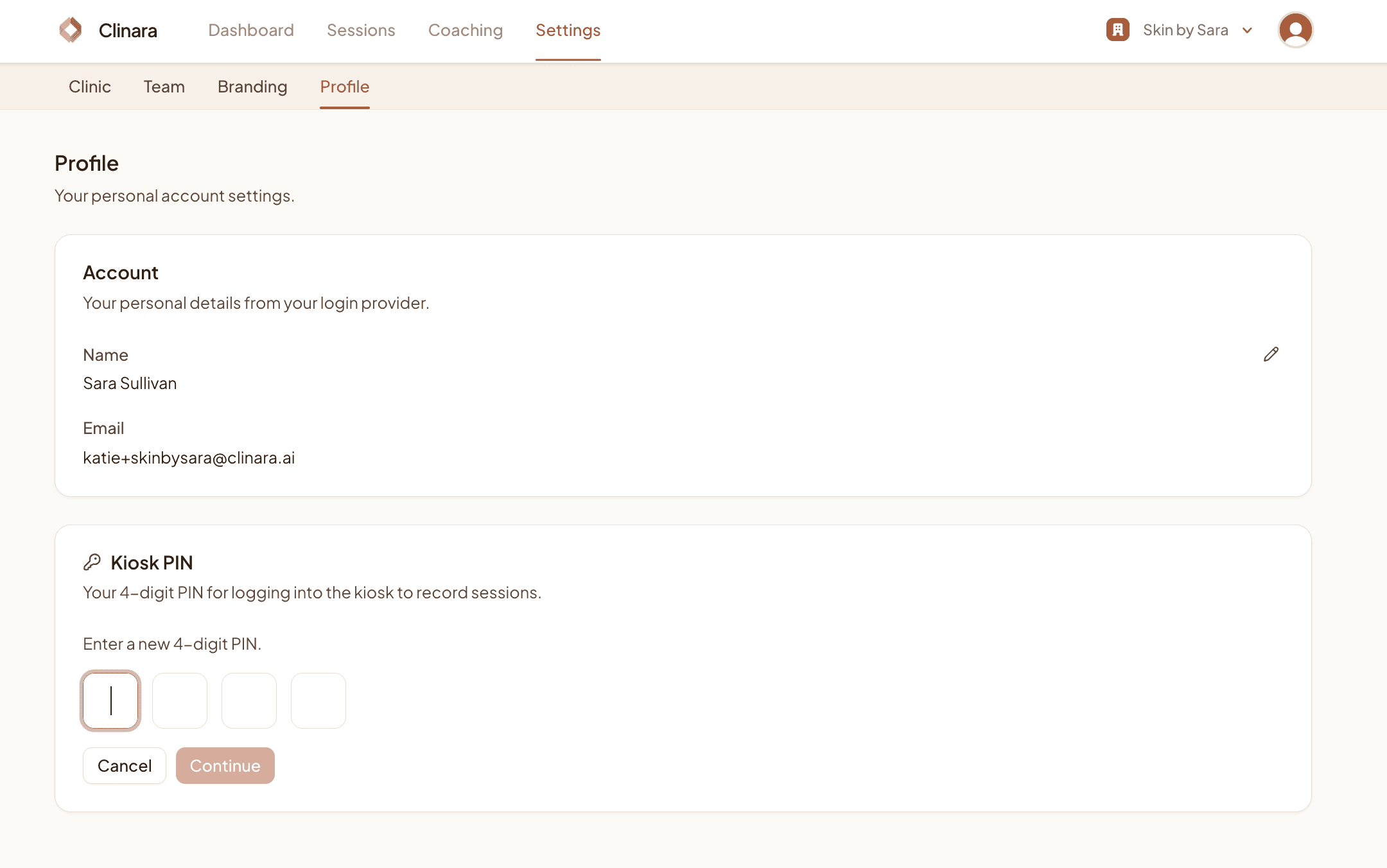
Every team member uses a 4-digit PIN to identify themselves on the kiosk. Head to Settings › Profile — you’ll find the Kiosk PIN section under your account details.
Choose a 4-digit PIN
Click “Change PIN”, then type a 4-digit code into the boxes and click “Continue”. This is what you’ll enter on the device before each consultation, so pick something memorable but private.
PIN updated
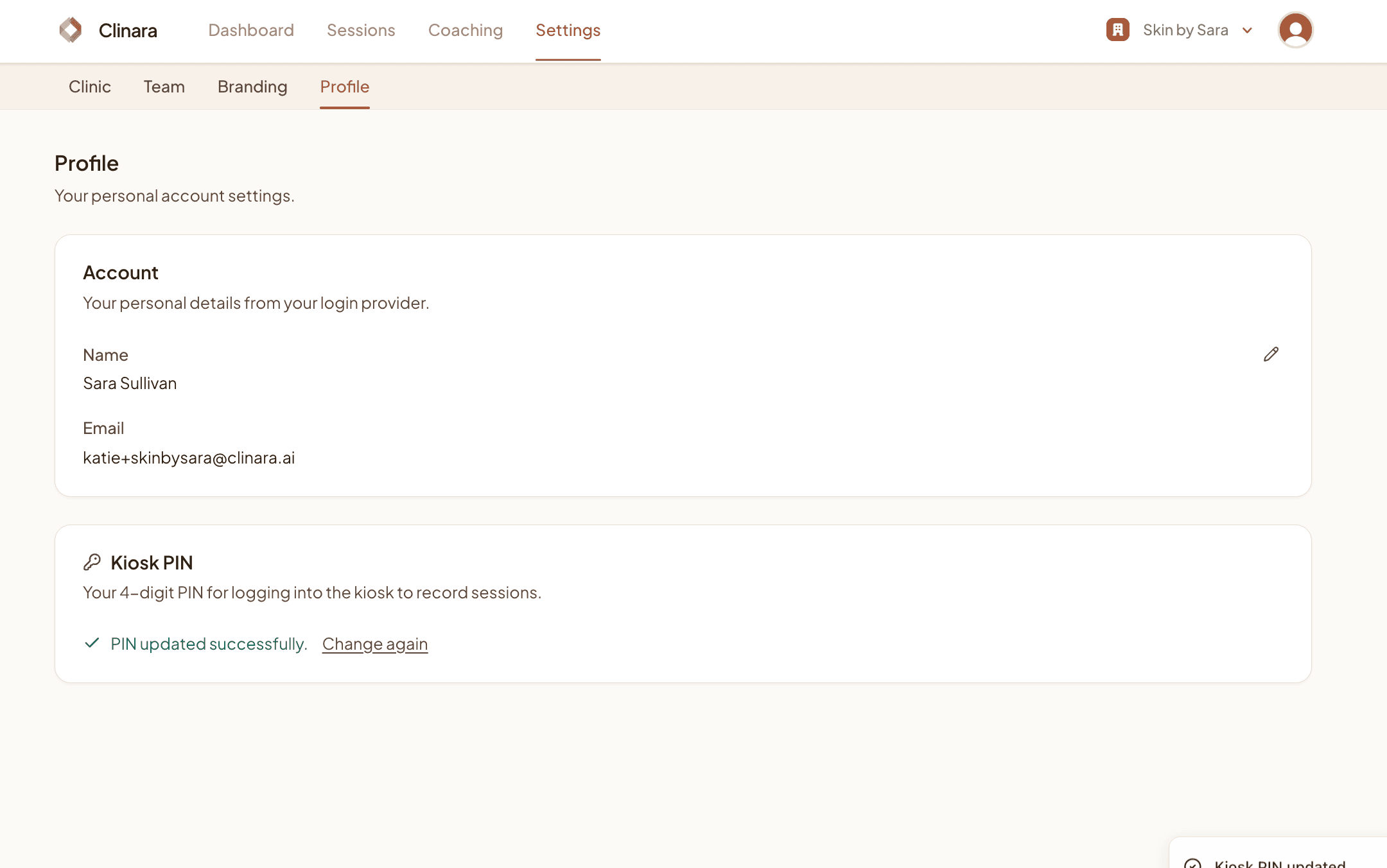
Once saved you’ll see a “PIN updated successfully” confirmation. Use “Change again” if you ever need to rotate it.
Need help? Contact support